How-to
How to Add a Cash on Delivery (COD) Fee in Shopify
Shopify has no built-in way to charge extra for Cash on Delivery. Here is how to add a COD fee that buyers see in checkout, and how to set it up in a few minutes.
Kalvyai Engineering · · 2 min read
On this page
Why charge a COD fee
COD orders cost more to run than prepaid ones. Your courier charges for collecting cash, the money takes longer to reach your bank, and some COD parcels are refused at the door and come back as RTO (return to origin). A small COD fee covers part of that cost and nudges buyers to pay online.

Can Shopify add a COD fee on its own?
Not directly. Shopify lets you turn on Cash on Delivery as a manual payment method, but it has no setting to charge extra when a buyer picks it. Common workarounds, like a separate "COD fee" product or a higher shipping rate for everyone, confuse buyers or charge prepaid customers too.
How to add a COD fee with Smart COD
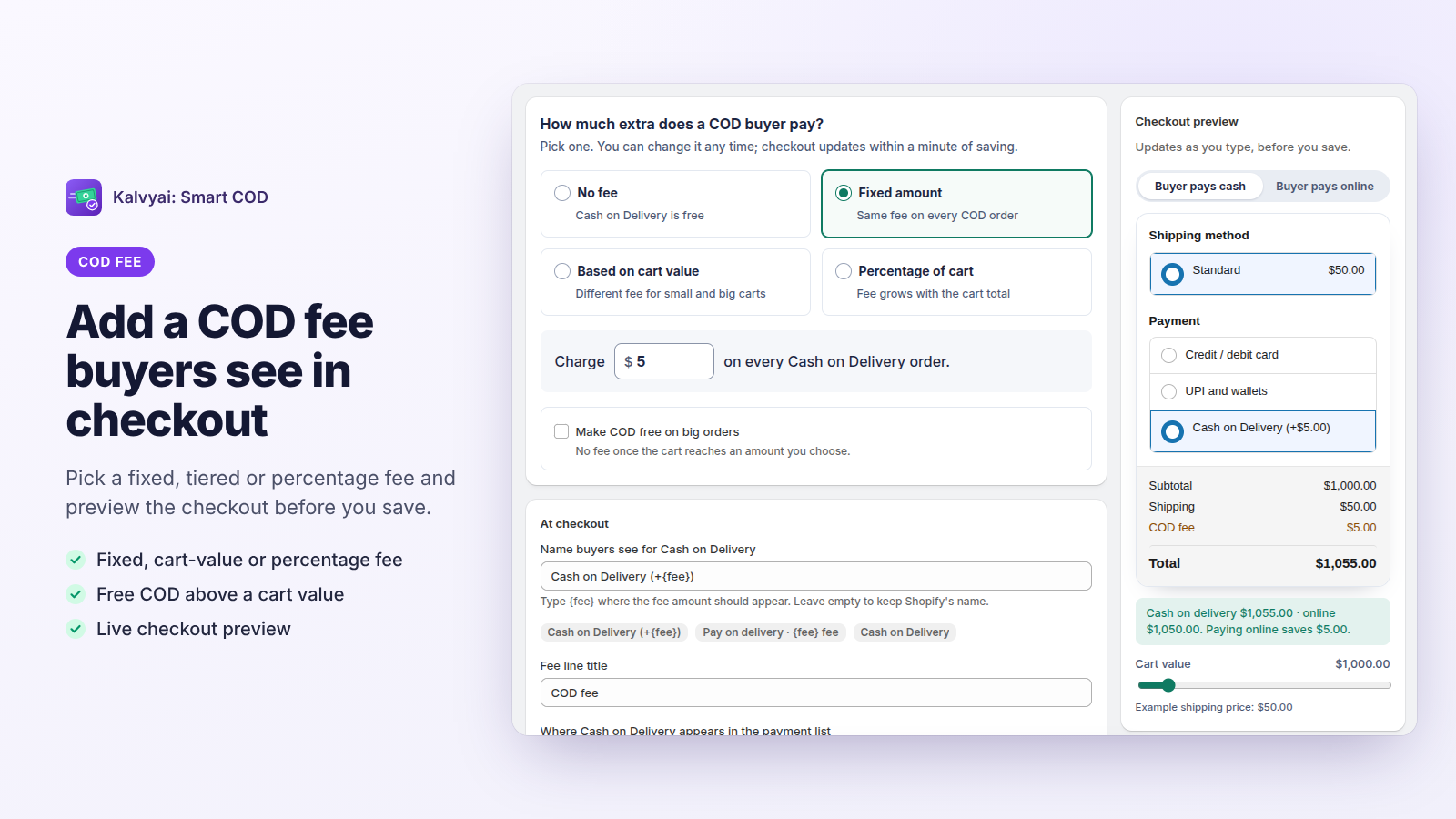
Kalvyai: Smart COD Fee & Rules adds the fee inside Shopify's native checkout, so buyers see it before they place the order.
- Install Smart COD from the Shopify App Store.
- Open the COD fee page and pick a fee type: fixed amount, based on cart value, or percentage of cart.
- Enter the amount, for example ₹40 on every Cash on Delivery order.
- Optionally turn on "Make COD free on big orders" and set the cart value above which the fee is waived.
- Check the checkout preview. It shows the total with the fee and how much the buyer saves by paying online.
- Save. Checkout updates within about a minute.
Choose the right fee type
- Fixed amount: the simplest option. One fee on every COD order.
- Based on cart value: a different fee for small and big carts, for example a higher fee on small orders where COD costs hurt most.
- Percentage of cart: the fee grows with the order total. This needs calculated shipping, which comes with the Advanced or Plus plan or Shopify's add-on.
Tips for a COD fee that works
- Name the payment option clearly, for example "Cash on Delivery (+₹40)", so buyers are not surprised at the last step.
- Keep the fee small. The goal is to cover costs and nudge buyers online, not to block COD.
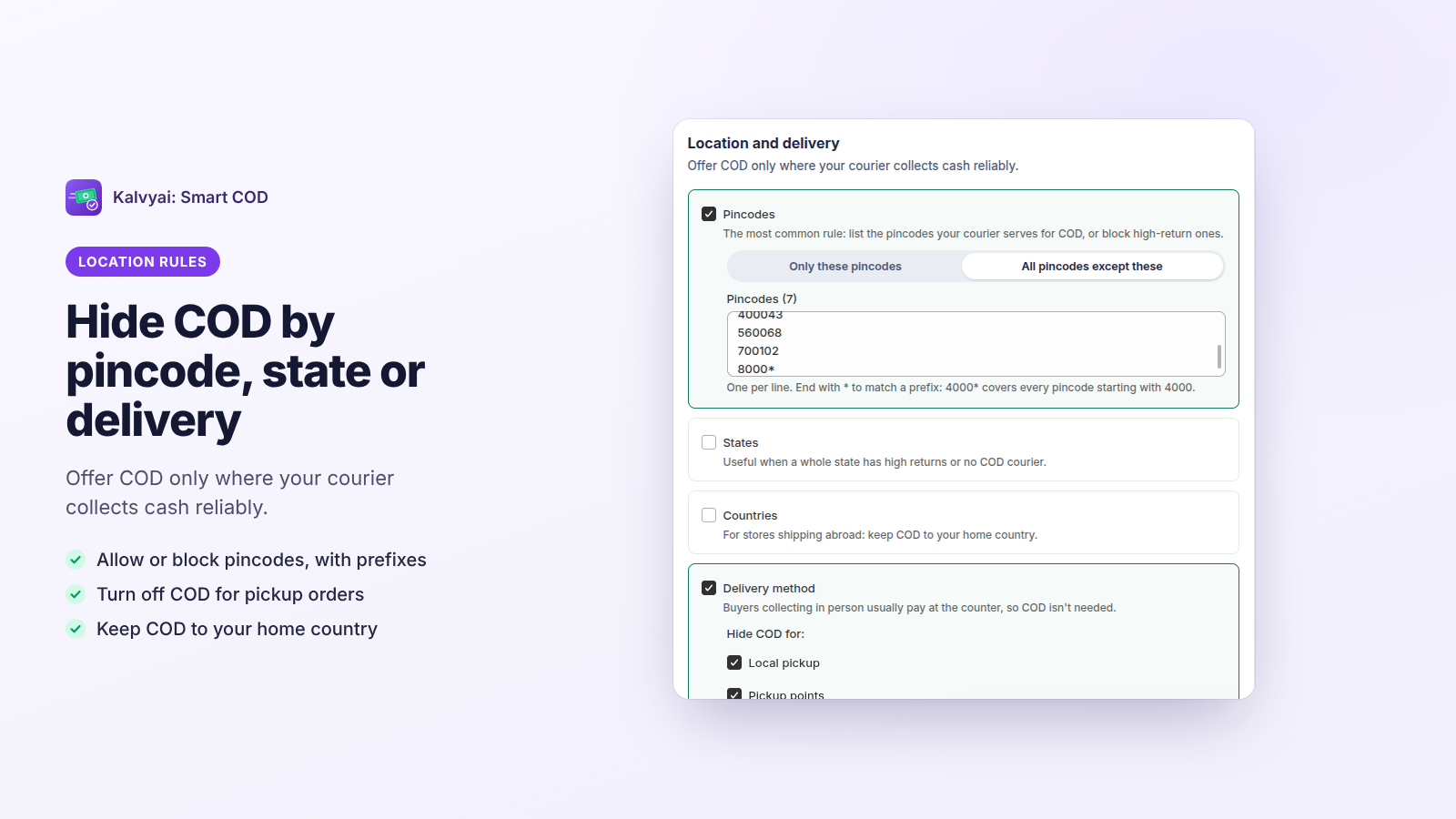
- Pair the fee with COD rules, so high-return pincodes or very large carts don't get COD at all.
- Track the results. Smart COD shows fee revenue, buyer confirmations and RTO, so you can see whether the fee is working.
Get started
Smart COD has a free plan with 100 COD orders a month, including the COD fee and every rule. Install Kalvyai: Smart COD Fee & Rules from the Shopify App Store: https://apps.shopify.com/smart-cod-fees-rules-rto
Kalvyai Engineering · Engineering team
The engineers who build, connect and fix business systems at Kalvyai: Odoo, ERPNext, Shopify and AI agents that work inside them with approvals, budgets and an audit trail.

Comments
No comments yet. Questions and corrections are welcome.
Rate this post or leave a comment