User guide
Smart COD Fee & Rules for Shopify: Complete User Guide
How to install and set up Smart COD Fee & Rules for Shopify: charge a COD fee at checkout, control who can pay cash on delivery, confirm orders on WhatsApp and track RTO.
Kalvyai Engineering · · 7 min read
On this page
Smart COD Fee & Rules is a Shopify app with two jobs. It adds a cash on delivery (COD) fee at checkout, and it decides which buyers can pay cash on delivery. It is built to protect your margins on COD orders and to cut returned-to-origin (RTO) orders.
You can buy and install the app from the Smart COD Fee & Rules store page.
This guide covers what the app does, who it is for, installation, setup, each main feature step by step, tips, limitations and an FAQ.
What the app is for
COD orders cost more to handle than prepaid orders. Some buyers also refuse the parcel at the door, and the order comes back to you as an RTO. Smart COD Fee & Rules gives you four ways to deal with this:
- Charge for COD. Add a flat, tiered or percentage COD fee in Shopify's own checkout.
- Limit who sees COD. Show or hide the COD option based on rules such as pincode, cart value or customer tag.
- Check orders before they ship. Score risky orders, block known fake buyers, hold risky orders, and ask buyers to confirm on WhatsApp.
- Measure the result. See fee revenue, confirmation rate and RTO orders in one place.
Who it helps
- Store owners who offer COD and want to recover its cost or steer buyers toward prepaid payment.
- Operations teams who deal with refused parcels and want fewer of them.
- Shopify admins who need COD rules by region, product or customer group without custom code.
- Stores in several markets. The app is available in English, Hindi, Arabic, French, Spanish, Indonesian and Portuguese (Brazil).
Plans
The app has three plans: Free, Growth and Pro. You can pay monthly or yearly, and billing goes through Shopify.
Feature | Free | Growth | Pro |
|---|---|---|---|
COD fee in checkout | Yes | Yes | Yes |
Rules for who sees COD | Yes | Yes | Yes |
Risk scoring and blocklist | Yes | Yes | Yes |
WhatsApp order confirmation | Yes | Yes | Yes |
RTO analytics | Yes | Yes | Yes |
CSV and Google Sheets export | No | Yes | Yes |
Auto-cancel unconfirmed COD orders | No | Yes | Yes |
A/B test for the COD fee | No | No | Yes |
The Free plan covers 100 COD orders a month. For current Growth and Pro prices and limits, see the store page.
Installation
- Open the store page.
- Choose a plan: Free, Growth or Pro.
- Click the install button and sign in to the Shopify admin of the store you want to use.
- Review the permissions the app requests and approve them.
- If you picked Growth or Pro, approve the charge on Shopify's billing screen. Paid plans can be billed monthly or yearly.
- Open the app from the Apps section of your Shopify admin.
Initial setup
Do these once before you create fees or rules.
Pick the app language
The app is available in English, Hindi, Arabic, French, Spanish, Indonesian and Portuguese (Brazil). Choose the language you want to work in.
Check your COD payment method
The app works with Shopify Checkout. Confirm how COD must be configured in your store before the app can show, hide or add a fee to it. Make sure Cash on Delivery (COD) is turned on as a manual payment method under Settings > Payments in the Shopify admin.
Connect WhatsApp
WhatsApp order confirmation needs a WhatsApp connection. Open the app's WhatsApp settings and follow the connection steps shown there.
Connect Google Sheets (Growth and Pro)
If you plan to export to Google Sheets, connect your Google account. Follow the connection steps shown in the app.
How to use each feature
1. Add a COD fee at checkout
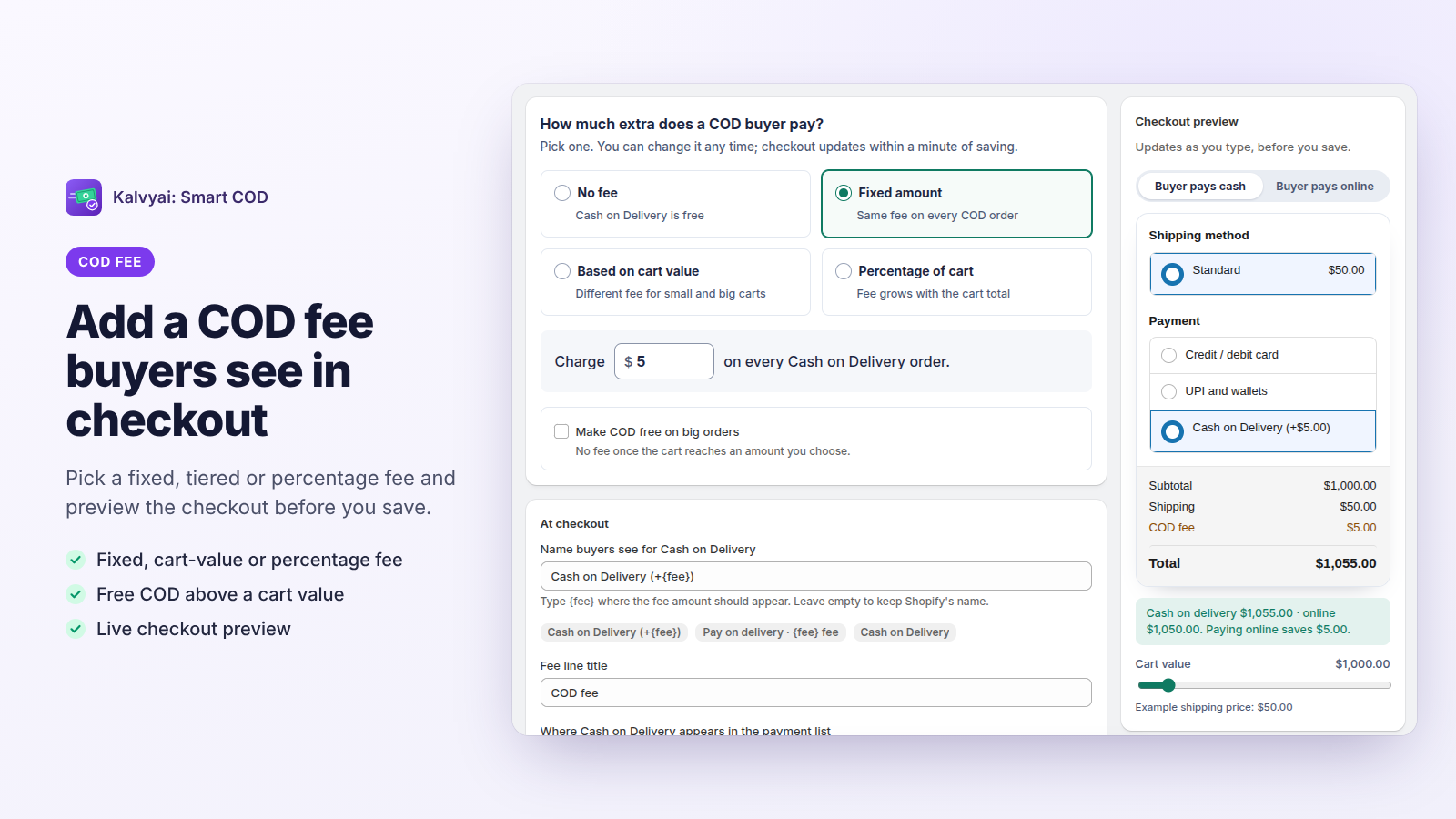
The fee is added in Shopify's own checkout. You can choose one of three fee types:
- Flat: the same fee on every COD order.
- Tiered: a different fee for different cart value bands.
- Percentage: a percentage of the order value.
Example of a tiered setup (the numbers are illustrative only):
Cart value 0 - 499      -> COD fee 49
Cart value 500 - 1,999  -> COD fee 29
Cart value 2,000+       -> COD fee 0
Steps:
- Open the app and go to the COD fee settings.
- Choose flat, tiered or percentage.
- Enter the amount, the tiers or the percentage.
- Save, then place a test COD order to check the fee in checkout.
On Shopify Plus, the fee shows as a separate fee line in checkout. On other Shopify plans it is applied in a different way, so place a test COD order to see how the fee appears in checkout and on the order.
2. Set rules for who sees COD
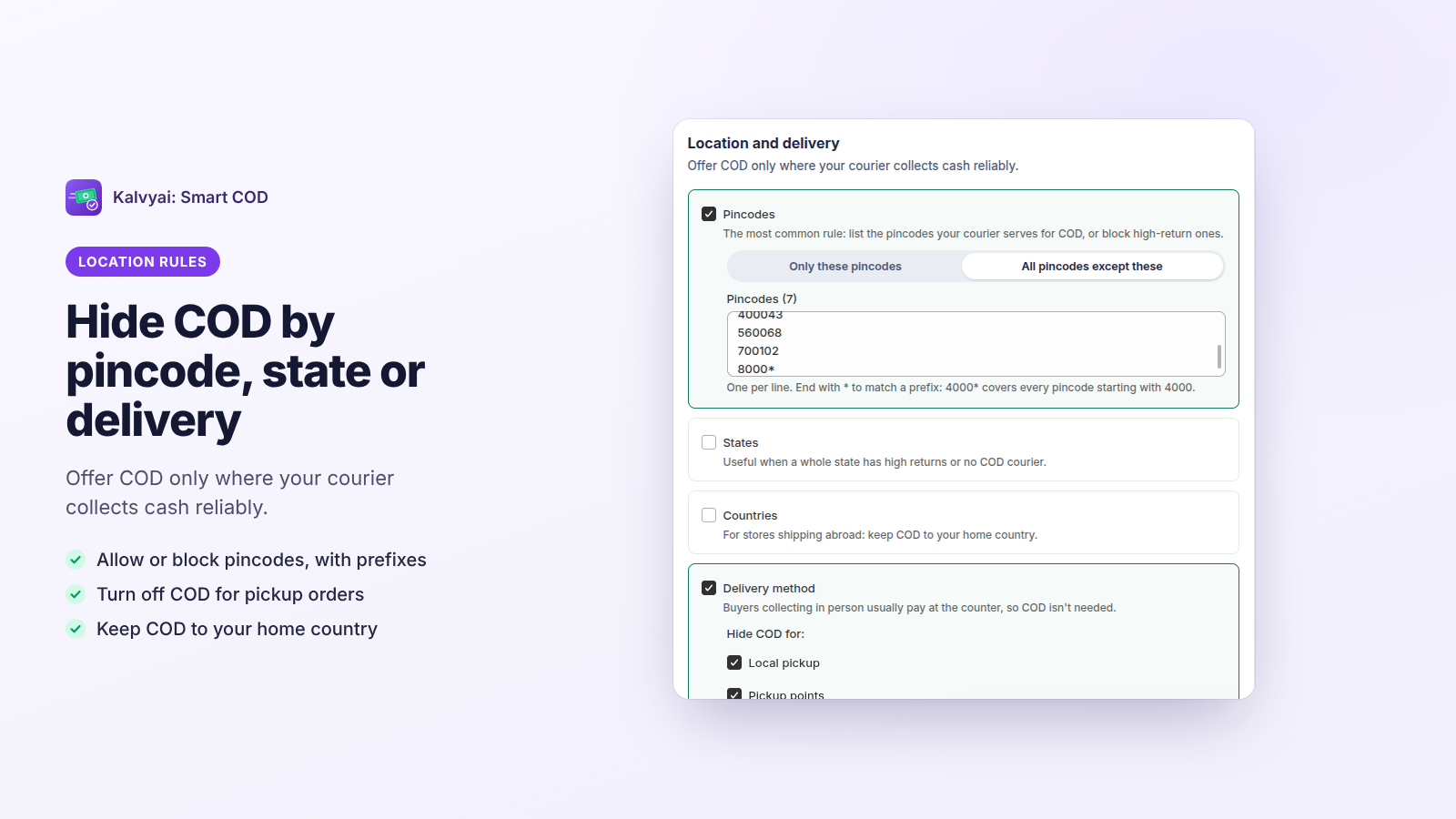
Rules decide whether a buyer sees the COD option. You can show or hide COD by:
- Pincode
- State
- Country
- Cart value
- Product
- Customer tag
- Delivery method
- Dates
Examples of rules stores often want:
- Hide COD for pincodes where couriers do not collect cash.
- Hide COD above a cart value you are not willing to risk.
- Hide COD for a specific product, such as made-to-order items.
- Show COD only to customers with a tag like
trusted. - Hide COD during a sale period by setting dates.
Steps:
- Open the rules section.
- Create a new rule and choose show or hide.
- Add one or more conditions from the list above.
- Save the rule. If you create several rules, test them together to see which result a buyer gets when more than one rule matches.
- Test in checkout with an address, cart and customer that match the rule, and with one that does not.
3. Use risk scoring and the blocklist
The app scores risky orders, lets you block known fake buyers, and can hold risky orders before they ship.
Steps:
- Open the risk section.
- Review how orders are scored.
- Add known fake buyers to the blocklist.
- Turn on holding for risky orders.
- Review held orders and release or cancel them.
4. Confirm COD orders on WhatsApp
After a buyer places a COD order, they can confirm it with one tap on WhatsApp. This tells you which orders the buyer actually expects to receive.
Steps:
- Make sure WhatsApp is connected (see Initial setup).
- Turn on WhatsApp confirmation.
- Set up the message.
- Place a test COD order with your own WhatsApp number and confirm it.
- Check that the confirmed status shows on the order.
5. Read the RTO analytics
The analytics view shows three things in one place:
- Fee revenue: what you collected from COD fees.
- Confirmation rate: how many COD buyers confirmed on WhatsApp.
- RTO orders: orders that came back undelivered.
Open it from the analytics section of the app. To track RTO accurately, check how the app knows an order was returned.
6. Export data and automate (Growth and Pro)
Export:
- Open the export option.
- Choose CSV or Google Sheets.
- For Google Sheets, pick the connected account and sheet.
Auto-cancel unconfirmed COD orders:
- Open the automation settings.
- Turn on auto-cancel for COD orders that were not confirmed.
- Set the waiting time before cancel.
- Save. Tell your support team, so they know why some orders are cancelled.
7. A/B test the COD fee (Pro)
Pro lets you run an A/B test on the COD fee, so you can compare fee settings with real orders instead of guessing.
- Open the A/B test section.
- Set the two fee variants.
- Start the test and let it run long enough to collect a useful number of orders.
- Compare results, then keep the better variant.
Tips
- Start with one change. Add the fee first, watch analytics, then add rules. Changing everything at once makes results hard to read.
- Test every rule in checkout. Use a real test order for each condition before going live.
- Use customer tags for trusted buyers. Repeat buyers who always accept parcels can keep COD even when other rules hide it.
- Review held orders daily. A held order that sits too long delays a real buyer.
- Use exports for courier reviews. Growth and Pro exports make it easy to share RTO data with your team or courier partner.
Limitations
- The fee appears as a separate fee line only on Shopify Plus. Check how it appears on your plan before launch.
- CSV and Google Sheets export and auto-cancel need Growth or Pro. The A/B test needs Pro.
- WhatsApp confirmation depends on the buyer using WhatsApp. Plan how your team will follow up on orders from buyers who do not reply.
- Risk scoring flags orders. It does not guarantee an order is fake or genuine, so review held orders before cancelling.
- Rules based on pincode, state or country depend on the address the buyer enters at checkout.
FAQ
Does the fee appear in Shopify's own checkout? Yes. The fee is added in Shopify's checkout. On Shopify Plus it shows as a separate fee line.
Can I offer COD only in some regions? Yes. Rules can show or hide COD by pincode, state or country.
Can I hide COD for expensive orders? Yes. Use a cart value condition in a rule.
Which plan do I need for Google Sheets export? Growth or Pro.
Can the app cancel orders that were never confirmed? Yes, on Growth and Pro, using auto-cancel for unconfirmed COD orders.
How am I billed? Through Shopify, monthly or yearly.
Which languages does the app support? English, Hindi, Arabic, French, Spanish, Indonesian and Portuguese (Brazil).
How Kalvyai can help
Kalvyai builds and connects Shopify, Odoo and ERPNext systems. If you want help planning COD rules, connecting COD and RTO data to your ERP, or adding AI agents that review orders with human approvals and an audit trail, contact us.
To get the app, visit the Smart COD Fee & Rules store page.
- User guide
- Shopify
- Cash on Delivery
- COD Fee
- RTO
- Checkout
- User Guide
The app in this guide
Smart COD Fee & Rules
Charge a COD fee at checkout and decide who can pay cash on delivery.
View in storeKalvyai Engineering · Engineering team
The engineers who build, connect and fix business systems at Kalvyai: Odoo, ERPNext, Shopify and AI agents that work inside them with approvals, budgets and an audit trail.

Comments
No comments yet. Questions and corrections are welcome.
Rate this post or leave a comment