AI Base for Odoo: Manage OpenAI, Claude, Gemini and All Your AI Providers in One Place
Stop pasting API keys into every Odoo module. AI Base manages OpenAI, Claude, Gemini and 6 more AI providers in one place, with one monthly token cap and one usage log for all your apps.
KalvyAI Engineering · · 11 min read
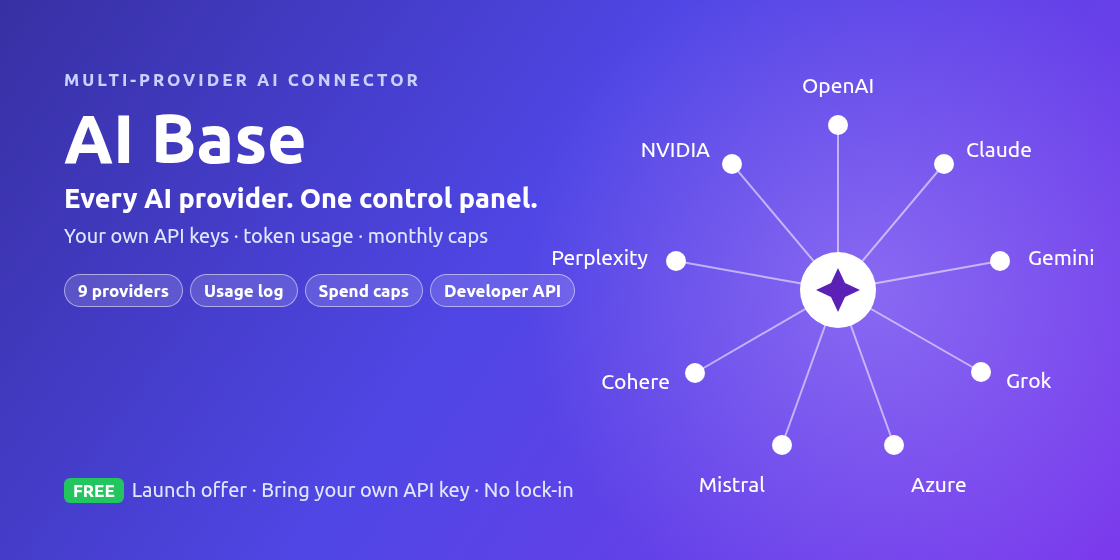
Every AI feature in Odoo usually wants its own API key, its own model settings and its own bill. Add three AI modules and you have three keys to protect, three places to switch models and no single view of what you spend. AI Base (technical name ki_ai_base) fixes that: it is a free Odoo module from kalvyai that manages all your AI providers in one place, for every module in your database.
You add OpenAI, Anthropic Claude, Google Gemini or any of 9 supported providers once, with one protected API key each. Every module built on AI Base then uses those same providers, under one monthly token cap and one usage log. It works on Odoo Community and Enterprise, Odoo.sh and on-premise, for Odoo 19 and Odoo 20.
Get AI Base free from the kalvyai Store and follow this guide to set it up in a few minutes.

Why manage AI providers in one place?
AI in Odoo gets messy fast once more than one module uses it. Here is what changes with a single AI layer:
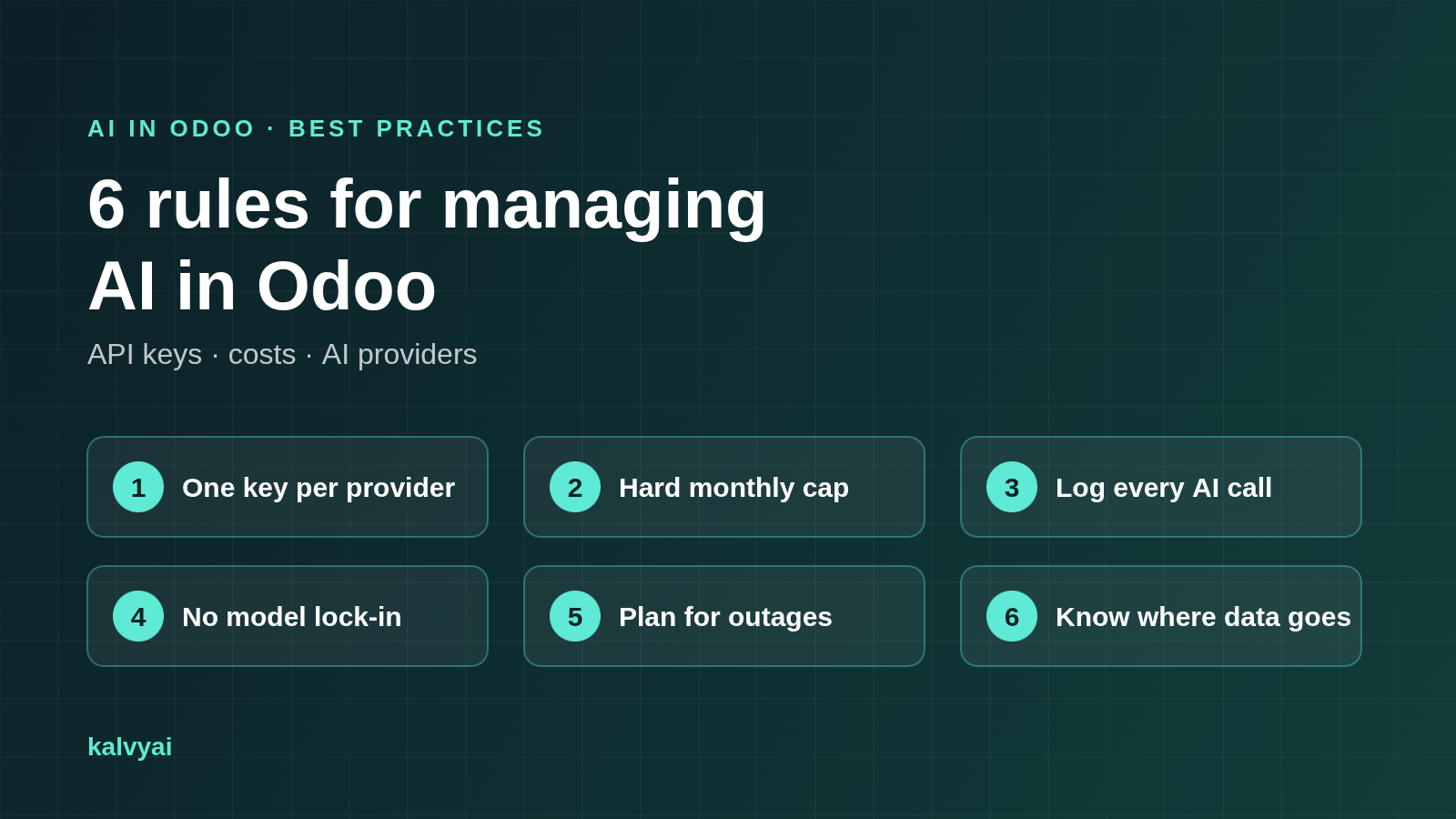
- One API key per provider, not per module. Without AI Base, every AI module asks for its own key, stored in its own settings or system parameters and visible to too many people. With AI Base, you enter each key once, in one protected place that only AI Managers can see.
- One place to switch models. When a better or cheaper model comes out, change the provider or model on one form. Every module built on AI Base uses it, with no code changes.
- One monthly budget. A loop, a large PDF batch or a forgotten cron can burn tokens before anyone notices. AI Base puts a hard monthly token cap on each provider and refuses calls before they are sent once it is reached.
- One usage log for every module. Every AI call from every module is logged with user, feature, linked record, tokens, duration, status and the exact error.
Your Odoo apps ask AI Base for an answer. AI Base checks the cap, uses the protected key, prepares any PDFs or images, calls the provider’s native API, validates the answer and logs the result. Calls go straight from your Odoo server to your provider: there is no kalvyai server in between and no telemetry.
Quick start: set up all your AI providers in one place
- Install AI Base from the kalvyai Store or the Odoo Apps Store. An AI Providers menu appears.
- Add each provider once: go to AI Providers > Providers > New, choose OpenAI, Anthropic Claude, Google Gemini or another provider, and paste its API key.
- Pick a model with Fetch Models, and set a Monthly Token Cap.
- Click Test Connection to confirm the key and model work.
- Install your AI modules. Any module built on AI Base uses these providers automatically: no new keys, no extra settings.
The rest of this guide explains each step with screenshots, plus user access, usage reports and the developer API.
Who this guide is for
- Business owners and finance teams: read Step 3 (token cap) and Step 6 (usage reports) to control AI spending.
- Odoo administrators: follow Steps 1 to 6 to set up providers and user access.
- Developers and Odoo partners: jump to "For developers" to add AI to your own modules in about 10 lines of Python.
Supported AI providers: which AI works with Odoo?
Each provider is called through its own native API. Any model the provider offers can be picked with Fetch Models.
- OpenAI: Responses API, default model
gpt-5-mini, reads PDFs natively. - Anthropic Claude: Messages API, default
claude-sonnet-5-5, reads PDFs natively. - Google Gemini: generateContent API, default
gemini-3.8-flash, reads PDFs natively. - xAI Grok: default
grok-4. - Azure OpenAI: uses your own deployment name.
- Mistral AI: default
mistral-medium-latest. - Cohere: default
command-a-vision-07-2025. - Perplexity: default
sonar-pro. - NVIDIA NIM: default Nemotron VL.
All nine accept images and structured JSON answers, depending on the model you choose. OpenAI, Claude and Gemini also read PDF files directly; the others work from images.
Before you start
- An API key from at least one AI provider (OpenAI, Anthropic, Google AI Studio, xAI and so on). You pay the provider directly at its public price; kalvyai takes no commission.
- Administrator rights in Odoo to install apps.
- On-premise servers need outbound internet access to the provider’s API.
Step 1: Install AI Base in Odoo
- Get the module from the kalvyai Store, or from the Odoo Apps Store for Odoo 20 or Odoo 19. On Odoo.sh, use Deploy on Odoo.sh. On-premise, download it and place the
ki_ai_basefolder in your addons path. - In Odoo, activate developer mode, open Apps and click Update Apps List.
- Search for AI Base and click Activate.
- A new AI Providers menu appears.
AI Base needs no extra Python libraries. It uses requests and Pillow, which every Odoo installation already has.
Step 2: Add your AI provider and API key
- Go to AI Providers > Providers and click New.
- Give the provider a name, for example "Gemini Flash Lite" or "Claude for bills".
- Choose the Provider (OpenAI, Anthropic Claude, Google Gemini and so on).
- Paste your API Key. A sensible default model is filled in.
- Click Fetch Models to see every model your key can use, and pick one.
- Optionally adjust Temperature, Max Output Tokens per Call, Reasoning Effort and Timeout per Call. Every field has a tooltip that explains it.
- Save.

Tip: add a second provider as a backup. Apps built on AI Base can switch to the next provider when one is rate-limited, down or over its cap.
Step 3: Set a monthly token cap to control AI costs in Odoo
The Monthly Token Cap is what stops surprise AI bills. Enter it on the provider form; 0 means unlimited.
- The cap counts input plus output tokens for that provider in the current month.
- Once it is reached, further calls are refused before anything is sent, so nothing is billed.
- Calls resume on the 1st of the next month, or as soon as an AI Manager raises the cap.
- Tokens billed for an answer that is later rejected (refused, invalid JSON or cut off) still count, exactly as on your provider’s invoice.
The providers list shows each provider’s tokens this month, its cap, the percentage used and the last health check:

Tip: the cap is measured in tokens, not money. Divide your monthly budget by your provider’s price per token. Start low while testing, then adjust once you see real usage.
Step 4: Test the AI connection
Click Test Connection on the provider form. AI Base sends a tiny real prompt with your key and model. If it works, a green message confirms the model answered and shows how many tokens it used:

Troubleshooting: if the test fails
You see the provider’s own error in plain words. The most common ones:
- Invalid API key: copy a fresh key from the provider’s dashboard and paste it again.
- Unknown model: click Fetch Models and pick a model from the list.
- Rate limit: wait and retry, check your credit with the provider, or add a backup provider.
- Timeout: retry, or raise Timeout per Call on the provider form.
- No network: on-premise, allow outbound HTTPS from your Odoo server to the provider.
- Monthly cap reached: an AI Manager raises the cap, or wait until next month.
Step 5: Give your team the right access
AI Base adds two access groups, so API keys stay with the people responsible for them. Assign them in Settings > Users & Companies > Users.
- AI Providers: User can use AI features and read the usage log, but can never see an API key.
- AI Providers: Manager can also add providers, enter keys and change caps.
Give most staff the User role, and keep Manager for your Odoo administrator or finance lead.
Step 6: Track AI usage and costs per module, user and provider
Every AI call is logged, so you always know where your tokens go. Open AI Providers > Usage.
Usage log: each call with time, provider, model, feature, user, tokens, duration and status. Failed and rate-limited calls stand out, and you can open the record a call was made for in one click.

Graph view: daily tokens per provider, stacked, so you spot cost trends before finance does.

Pivot view: tokens by provider and month, to compare providers and pick the model with the best value. Export it to a spreadsheet like any Odoo report.

Advanced: multi-company, proxies and local LLMs (Ollama, vLLM)
- Multi-company: each company has its own providers, keys, caps and usage. Users only see the companies they belong to.
- Company gateway or proxy: override the Base URL on the provider form to route AI traffic through your own gateway.
- Local or self-hosted models: AI Base can reach any server with an OpenAI-compatible chat-completions endpoint, such as Ollama, vLLM or self-hosted NVIDIA NIM. Pick a chat-completions provider type (for example Mistral or NVIDIA NIM), set its Base URL, enter the model name and click Test Connection.
For developers: add AI to any Odoo module
Add ki_ai_base to your module’s depends and call _generate(). AI Base handles keys, caps, logging, file conversion, error handling and the differences between provider APIs. You can build, ship and sell your own modules on top of it.
Example: classify helpdesk ticket priority, falling back to the next provider when one is busy.
# __manifest__.py
'depends': ['helpdesk', 'ki_ai_base'],

# models/helpdesk_ticket.py
from odoo.addons.ki_ai_base.models.ki_provider import ProviderBusy

providers = self.env['ki.provider'].search([
    ('company_id', '=', self.env.company.id),
])
for provider in providers.filtered(lambda p: not p._budget_reached()):
    try:
        result, usage = provider._generate(
            'You classify support tickets.',
            text=ticket.description,
            json_schema={'type': 'object', 'properties': {
                'priority': {'type': 'string'}}},
            feature='ticket_triage',
            record=ticket,
        )
        break
    except ProviderBusy:
        continue  # rate limit or outage: try the next provider

ticket.priority = result['priority']
_generate(instructions, text=, files=, json_schema=, feature=, record=)runs one call and returns(result, usage). With a JSON schema,resultis a Python dict.filestakes raw bytes of PDFs or images; images are rotated, resized and converted to JPEG for you._budget_reached()tells you if the monthly cap is spent;_can_read(mimetype)tells you if the provider accepts a PDF or image.ProviderBusymeans a temporary failure (timeout, rate limit, outage): retry or switch provider.BudgetExceededmeans the cap is reached.UserErrormeans a permanent failure such as a bad key.- The
ki_ai_timeoutcontext key shortens the 70-second default timeout, for example inside a cron.
What you can build on AI Base
AI Base is the foundation. Business features come from modules built on it, from kalvyai, other vendors or your own team. Popular ideas:
- Invoice and bill reading: turn PDFs and phone photos of vendor bills into structured lines.
- Helpdesk ticket triage: classify tickets by priority, team and topic as they arrive.
- CRM lead scoring: score and summarise leads from their emails and notes.
- eCommerce product content: write descriptions and attributes from product photos.
- Chatter summaries: summarise long email threads on any record.
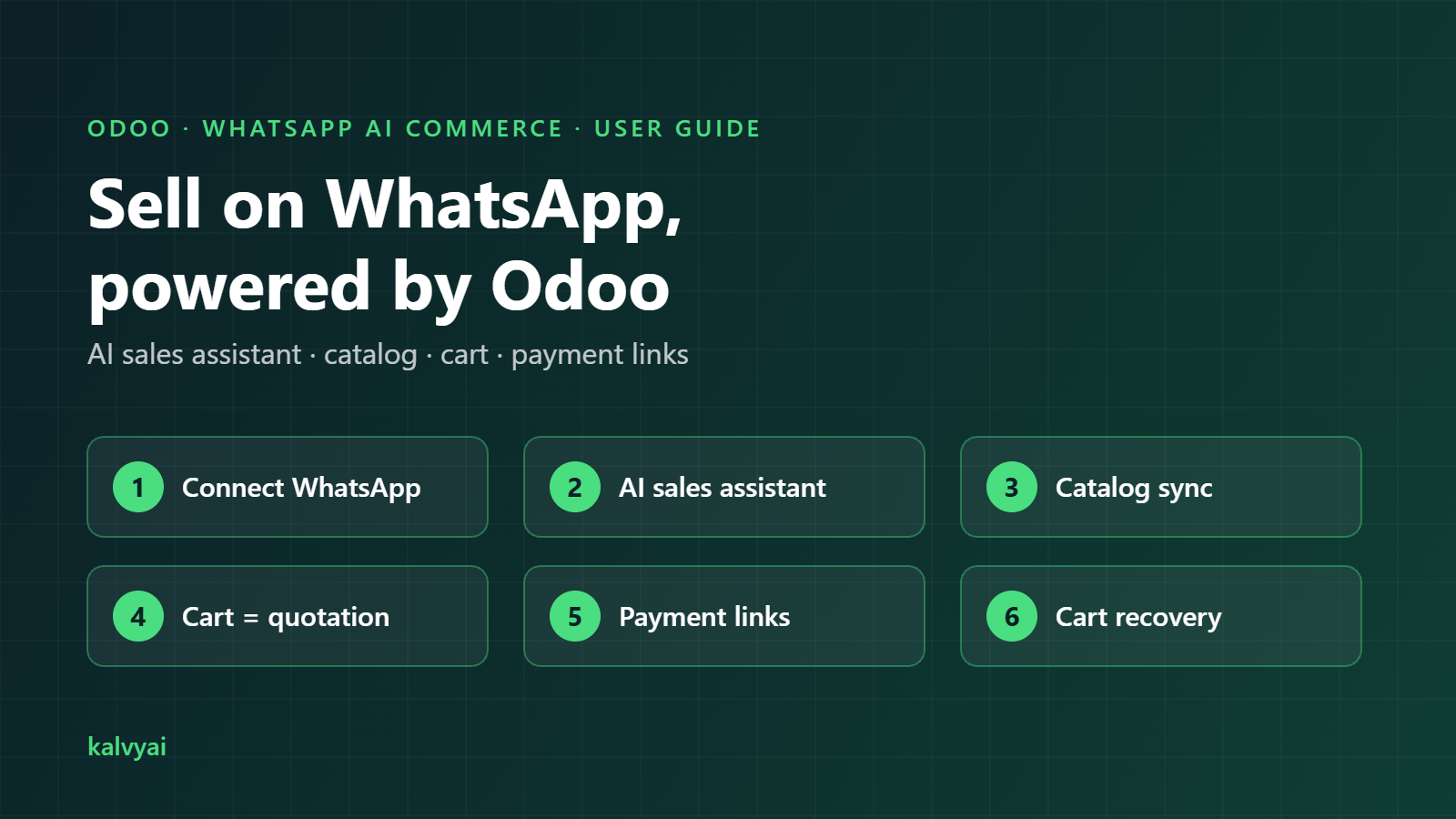
- Chatbots: power WhatsApp, website or email assistants with capped, logged AI calls.
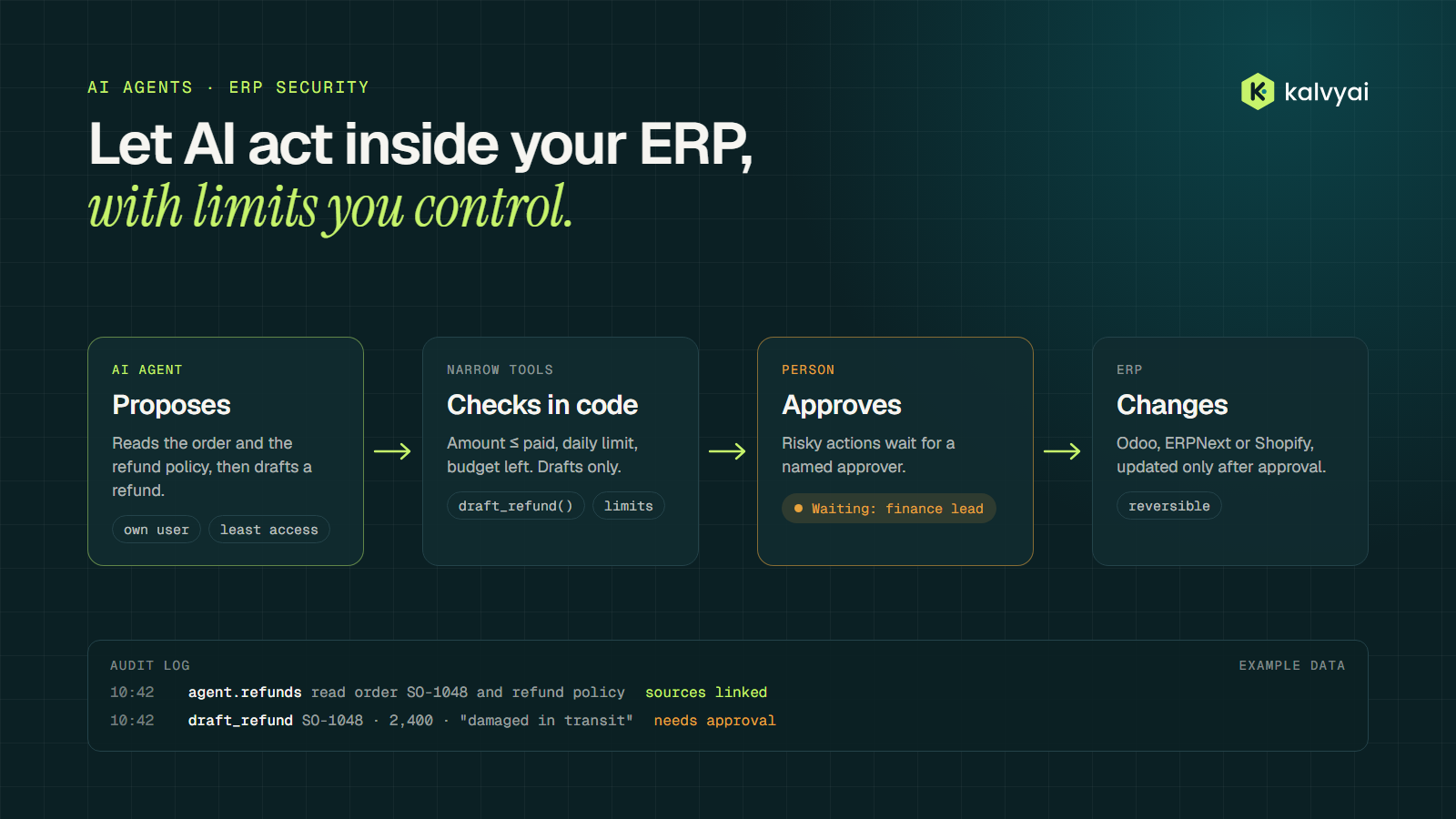
Want AI agents that act inside your ERP? Read how to give an AI agent access to your ERP safely.
Need an AI feature that does not exist yet? kalvyai builds custom Odoo modules on top of AI Base. See our Odoo development services or our AI and agents work.
Frequently asked questions
Which AI providers can I use with Odoo?
With AI Base you can use OpenAI, Anthropic Claude, Google Gemini, xAI Grok, Azure OpenAI, Mistral AI, Cohere, Perplexity and NVIDIA NIM, plus self-hosted models with an OpenAI-compatible endpoint, all managed from one AI Providers menu.
How do I control AI costs in Odoo?
Set a Monthly Token Cap on each provider in AI Base. Once the cap is reached, calls are refused before they are sent, so nothing more is billed. The usage log, graph and pivot show which module, user and provider used the tokens.
Do I need a separate API key for each AI module in Odoo?
No. With AI Base you enter each provider’s API key once, in one protected place. Every module built on AI Base shares those providers, their monthly caps and the same usage log.
Can I switch AI providers without changing my modules?
Yes. Change the provider or model on the AI Base provider form and modules built on AI Base keep working, with no code changes.
Does AI Base add AI features to Odoo on its own?
No. It provides provider setup, connection tests, spending caps and the usage log. AI features come from apps built on it or from your own modules.
How do I add my OpenAI API key to Odoo?
Install AI Base, go to AI Providers > Providers > New, choose OpenAI, paste your OpenAI API key, pick a model with Fetch Models and click Test Connection. Every AI Base module in your database can then use it.
Can I use Claude or Gemini in Odoo?
Yes. Anthropic Claude and Google Gemini are both supported through their native APIs, including direct PDF reading.
Is AI Base free?
Yes, during the launch offer it costs $0 instead of $1. You get a lifetime licence for one production database (staging and test copies included), 90 days of free support and free updates. You pay your AI provider directly for tokens.
What happens when the monthly token cap is reached?
Further calls to that provider are refused before anything is sent. They resume on the 1st of next month or when a manager raises the cap.
Can my staff see the API keys?
No. Only users with the AI Providers: Manager role can see or edit keys.
Can I run a local LLM such as Ollama with Odoo?
Yes, if it exposes an OpenAI-compatible chat-completions endpoint. Use a chat-completions provider type and set its Base URL.
Is my data used to train AI models?
That depends on your provider’s API terms. AI Base sends data only to the provider you configure and stores nothing outside your Odoo. OpenAI calls are sent with storage turned off.
Get started with AI Base
Take control of AI in your Odoo: one secure place for every API key, one monthly limit on spending and one log of every AI call, across 9 providers. Get AI Base from the kalvyai Store, or install it from the Odoo Apps Store for Odoo 20 or Odoo 19.
Need help with setup or building on AI Base? Email support@kalvyai.com or talk to our team.
- Odoo
- Odoo AI
- AI providers
- API keys
- OpenAI
- Claude
- Gemini
- AI Base
- Odoo 19
- Odoo 20
- User guide
KalvyAI Engineering · Engineering team
The engineers who build, connect and fix business systems at KalvyAI: Odoo, ERPNext, Shopify and AI agents that work inside them with approvals, budgets and an audit trail.
Comments
No comments yet. Questions and corrections are welcome.
Rate this post or leave a comment