WhatsApp AI Commerce for Odoo: Complete User Guide
Let customers browse, order and pay on WhatsApp while an AI assistant answers from live Odoo stock and prices. A step-by-step setup guide for WhatsApp AI Commerce, with screenshots.
KalvyAI Engineering · · 5 min read
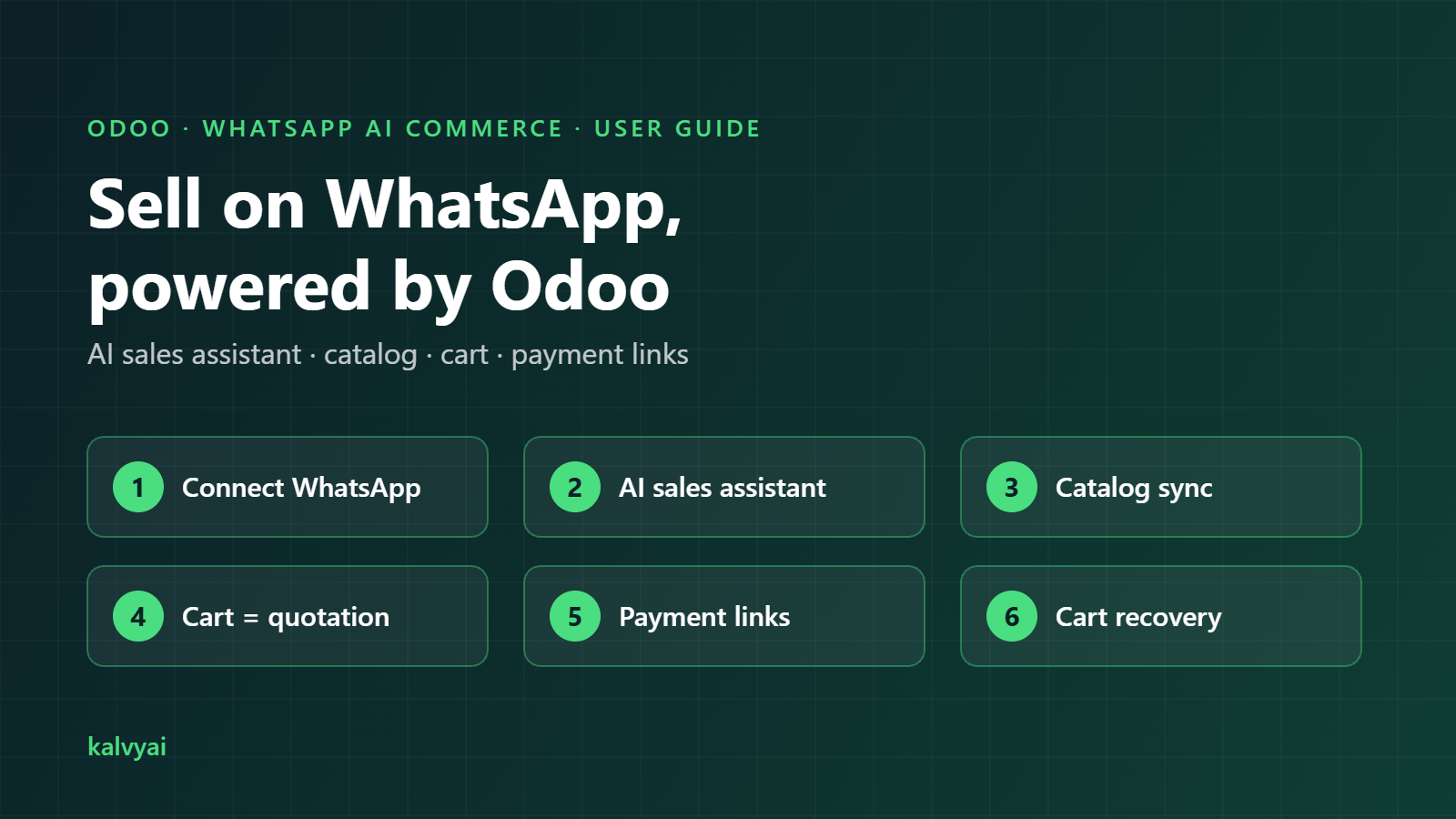
Your customers already ask about products on WhatsApp. WhatsApp AI Commerce is a WhatsApp chatbot and WhatsApp Business API integration for Odoo that lets them finish the purchase there too: an AI sales assistant answers from your live Odoo stock and prices, builds the cart as an Odoo quotation and sends a payment link in the chat.
This guide takes you from installation to your first WhatsApp order. It covers Odoo 19 and Odoo 20, Community and Enterprise, and you do not need Odoo’s own WhatsApp app.
Get WhatsApp AI Commerce from the kalvyai Store · $49 one-time during the launch offer (regular price $99).
At a glance
- Channel: the official Meta WhatsApp Business Cloud API
- AI: Google Gemini, Groq or OpenAI, including voice notes
- Catalog: Odoo products synced to Meta Commerce Manager, or an in-chat product list
- Cart: a real Odoo quotation, updated with every tap
- Payment: a checkout link from your existing Odoo payment provider
- Follow-up: automatic abandoned cart reminders and an "Order Confirmed" message
What you need before you start
- Self-hosted Odoo or Odoo.sh (Odoo Online is not supported), reachable over public HTTPS
- A WhatsApp Business number on the Meta Cloud API, with a permanent System User access token
- At least one payment provider enabled in Odoo
- An API key from Google Gemini, Groq or OpenAI (recommended; the shop also works without one)
- Optional: a Meta Commerce catalog, if you want customers to browse your products natively in WhatsApp
Part 1: Connect your WhatsApp Business number
Install the module, then open WhatsApp AI Commerce > Configuration > Settings. You need a WhatsApp Business number on the Meta WhatsApp Cloud API. In Meta Credentials & Catalog, fill in:
- WhatsApp Phone Number ID and WhatsApp Business Account ID: both are in your Meta app under WhatsApp > API Setup.
- Meta Permanent Access Token: use a System User token, because temporary tokens expire within a day.
- Webhook Verify Token: any secret word you choose. You will type the same word in Meta.
- Meta App Secret (optional): lets Odoo verify that each webhook really comes from Meta.
Click Test WhatsApp API Connection. A success message means Odoo can send messages from your number.

Connect the webhook
The webhook is how incoming WhatsApp messages reach Odoo.
- Copy the Webhook Callback URL from the right side of the Settings page.
- In the Meta App Dashboard, go to WhatsApp > Configuration and paste it as the Callback URL.
- Enter your Webhook Verify Token and click Verify and save.
- Under Webhook fields, subscribe to messages.
Test it: send "hi" to your WhatsApp Business number. A new session should appear under Conversations within seconds.
Part 2: Set up the AI sales assistant
In Multi-LLM AI Engine, choose one provider and paste its API key:
- Google Gemini (default): balanced quality and cost. Model
gemini-flash-latest. - Groq: the fastest replies. Model
llama-3.3-70b-versatile. - OpenAI: model
gpt-4o-mini.
Any model ID your provider offers can be typed in. If the model is busy or rate-limited, the assistant retries once on a lighter model, and it never sends a reply that was cut off.
Give it your brand voice
Write a short System Prompt & Brand Tone: how to greet customers, which language to use, which products to recommend and what never to promise. Keep it to a few clear lines; the assistant already receives your live product, stock and cart data.
No AI key? The shop still works with keywords: customers type "catalog", "cart" or "checkout".
Part 3: Put your products on WhatsApp
You have two options:
- Meta Commerce catalog (recommended): enter the Meta Commerce Catalog ID in Settings and click Sync All Products to Meta Catalog. Customers then browse a native WhatsApp catalog.
- No catalog: customers get an in-chat product list with Add to Cart buttons. Nothing to set up.
Each product gets a WhatsApp Meta Catalog tab with its retailer ID, sync status and last sync time. Price, image, stock and archive changes can sync in real time, and a scheduled sync runs every 12 hours.

Finally, click Diagnose Catalog & Cart. It checks the Meta side and tells you in plain words what to fix, for example a catalog that is not yet connected to your WhatsApp Business Account.

Part 4: Day-to-day use
Follow conversations
Conversations lists every WhatsApp customer with their linked contact, phone number, last message time and message count. Customers are matched to Odoo contacts by phone number.

Open a session to read the whole chat: messages, button taps, cart updates, delivery and read status, and any Meta errors. Send Catalog pushes your catalog to that customer in one click.

Orders and payment links
Every WhatsApp cart is an ordinary Odoo quotation with a WhatsApp Commerce tab showing the session, cart status and checkout link. From any quotation, click Send WhatsApp Payment Link to send the customer a link to pay.

Abandoned carts and confirmations
- Quotations still unpaid after the reminder delay (2 hours by default) get one WhatsApp reminder. The check runs every hour.
- Keep the delay under 24 hours, because WhatsApp only allows free-form messages within 24 hours of the customer’s last message.
- When an order is confirmed, the customer automatically gets an "Order Confirmed" message.
Roles and permissions
- User: sees sessions and conversations.
- Admin: also changes settings.
Limits to know
- Staff cannot type free replies from Odoo; they can read every chat and send the catalog or payment links.
- Template messages are not used, so all messages fall within the 24-hour window.
- In-chat product lists show up to 10 items, and a catalog message up to 30. Products are added as their default variant.
- One WhatsApp number and one AI provider per database.
- Images and documents sent by customers get a polite reply pointing to the catalog.
- Customer messages and related Odoo context (products, cart, recent orders) are sent to your AI provider.
Troubleshooting
- No session appears after a test message: check the Callback URL, the verify token and that "messages" is subscribed in Meta.
- "Invalid catalog_id": connect the catalog to your WhatsApp Business Account in Meta. Customers get the in-chat list until then.
- Products do not sync: your access token needs the catalog_management permission.
- The assistant does not reply: test the AI provider key in Settings, or rely on keywords while you fix it.
FAQ
Does it work on Odoo Community?
Yes, on Community and Enterprise, with no need for Odoo’s WhatsApp app.
Which payment methods can customers use?
Any payment provider you have enabled in Odoo. The bot sends a link to your Odoo checkout.
Are prices and taxes correct for each customer?
Yes. They come from Odoo, using the customer’s pricelist and taxes.
Can I try it before buying?
Yes. kalvyai offers a free live demo in a private session.
Get started
Get WhatsApp AI Commerce from the kalvyai Store or install it from the Odoo Apps Store for Odoo 20 or Odoo 19. Every purchase includes 90 days of free support and free updates.
Still deciding? Read what a WhatsApp sales setup needs, book a free demo or email support@kalvyai.com.
- Odoo
- WhatsApp Business API
- WhatsApp chatbot
- AI sales assistant
- Meta catalog
- Odoo 19
- Odoo 20
- User guide
KalvyAI Engineering · Engineering team
The engineers who build, connect and fix business systems at KalvyAI: Odoo, ERPNext, Shopify and AI agents that work inside them with approvals, budgets and an audit trail.
Comments
No comments yet. Questions and corrections are welcome.
Rate this post or leave a comment